

Stock management

Know which slabs are ready - by size and by look

The issue

Material lives in someone’s head - and leftovers get forgotten after the saw.

A slab-first stock list with photos, shop codes, and remnant tracking, linked to quotes and jobs so the shop knows what’s ready before cut.

Starter includes up to 50 stock materials. Pro has unlimited stock materials.

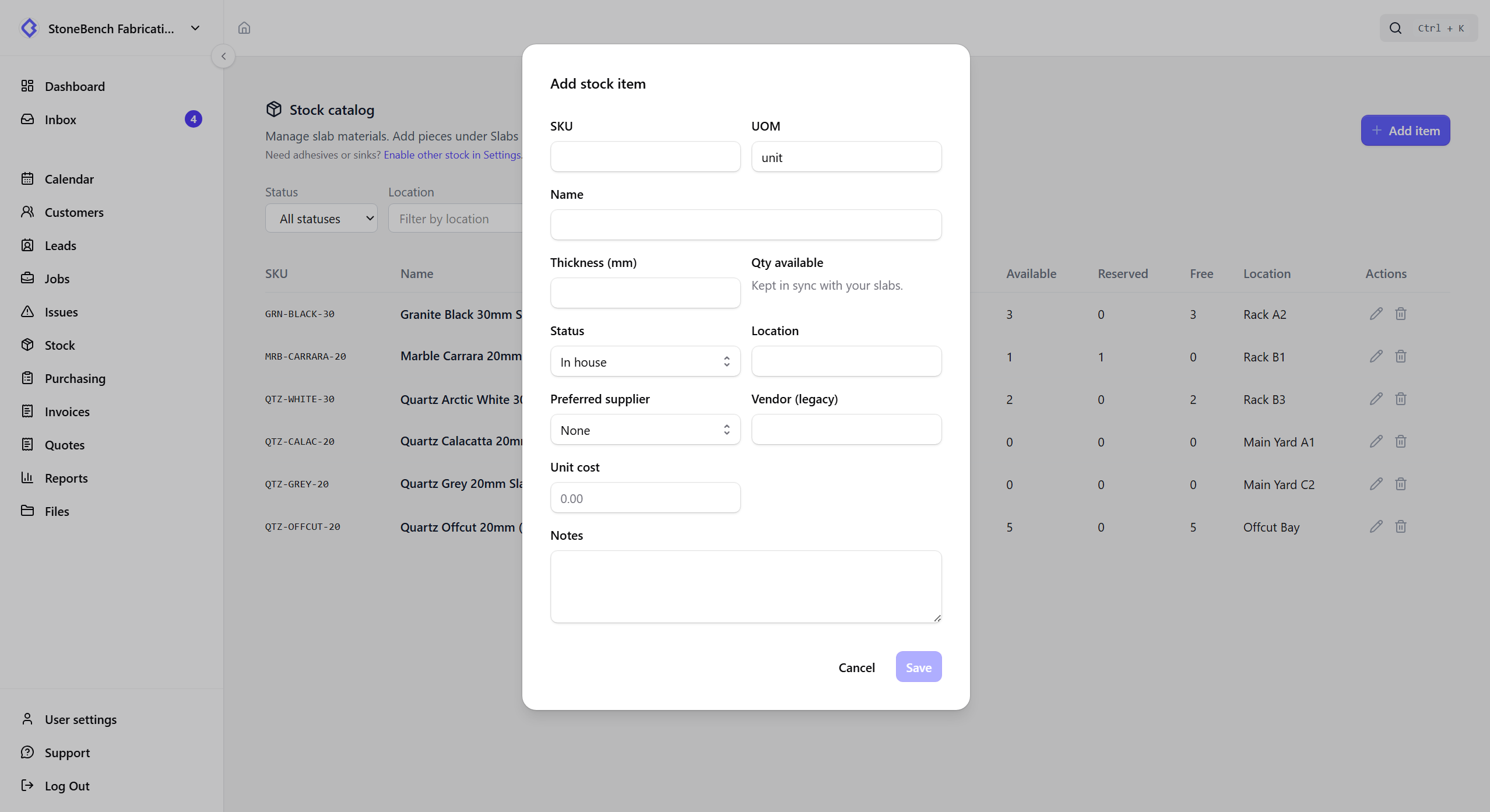
CutBench stock management showing slabs, remnants, and material status
Stock and slabs - shop codes, allocation, and remnants after the cut

How CutBench helps

Built around slabs, not warehouse noise

Most shops hold stone as individual pieces. CutBench defaults to slab tracking - shop code, length × width, thickness, location - so you allocate the exact piece to a job without double-booking. Quantity stock for adhesives and sinks stays available when you need it, behind a simple setting.

  • Individual slabs and remnants with sizes
  • Clear status: available, reserved, remnant, or consumed
  • Optional quantity stock when you also hold consumables

Identify pieces without a fancy printer

Give each slab a short shop code you can write on the edge with a china marker. Capture the supplier’s bundle or barcode mark as a separate supplier ID when it arrives. When you want printouts, download branded PDFs - yard sheets for the rack, two-sided sample cards for the showroom, thickness-sized side wraps for the edge, or roll labels sized to your label printer - each named by shop code so downloads stay clear.

  • Writable shop codes that work with no printer
  • Supplier IDs kept alongside your own shop code
  • Yard sheet, sample card, side wrap, and roll-label PDFs with QR lookup from the yard
  • Set your roll label size in Settings → Stock, or print 20 mm side wraps on a label printer

Refresh prices when the stockist list changes

Upload a stockist CSV under Settings → Import & Export to update unit costs on materials you already hold. Match by SKU, or confirm suggestions from brand, colour, and size. Preview before and after, then optionally lift end-customer and showroom sell prices with a percent or fixed markup on the new cost - without re-keying every slab.

  • SKU match when the file has codes; confirm suggestions when it does not
  • Clear before → after preview for cost and both sell prices
  • Optional markup from the new cost so quotes stay current

Photos so you pick by look, not only size

Attach photos when you receive a slab or photograph a leftover after the cut. Sales and the shop see thumbnails when browsing stock and when allocating to a job - so vein and colour match the quote, not just the millimetres.

Plan on the quote, reserve when accepted

Soft-plan slabs while you prepare the quote without locking stock. When the customer accepts, CutBench tries to reserve those pieces for the job. If a planned slab was taken in the meantime, the quote still accepts and the job flags material that needs reassignment.

Remnants from the cut, without leaving the job

When you mark an allocated slab used, create one or two leftover pieces with the new size - and an optional photo of the remnant. If the quote had a slab plan, sizes can fill in from the nest leftover. Remnants stay linked to the parent slab and show up when the next quote can nest on a piece that already fits.

Who it helps

Office, workshop, and field

  • Office

    See what’s in house per job, pick slabs by photo, and chase leftovers before they disappear.

  • Workshop

    Find a piece by shop code or scan, allocate the right slab or remnant, then log leftovers after the cut.

  • Field

    Less day-to-day on site - the win is office and workshop stopping fab too early.

Don't pay until you've finished your first job

Run a real job from quote to done before you choose a plan. Book a demo if you'd rather walk through it first.